
A Knowledge base is a managed collection of documents and data sources that an agent can search during conversations. Knowledge bases in the Agent Platform serve as the primary retrieval layer for enterprise content, enabling agents to query and access information across heterogeneous data sources. Content can be ingested via file uploads, web crawling, and external connectors, and is indexed to support vector, keyword, and structured retrieval. At query time, the platform applies enterprise search and RAG pipelines to automatically contextualize agent requests—resolving intent, enriching queries, and retrieving relevant chunks. This retrieved context is then made available to agents and tools, allowing them to perform grounded reasoning, execute workflows, and generate accurate, context-aware responses.Documentation Index
Fetch the complete documentation index at: https://koreai-v2-home-nav.mintlify.app/llms.txt
Use this file to discover all available pages before exploring further.
How Knowledge Bases Work
A knowledge base processes content through an ingestion pipeline (index-time) and serves it via a retrieval pipeline (query-time).Ingestion Process
The ingestion pipeline transforms raw content into retrieval-ready chunks with embeddings and metadata.- Ingestion: Registers and tracks content for processing. For uploaded files, the platform checks for duplicates using content hashing, files that have already been indexed with unchanged content are skipped. For connected data sources, the platform discovers and tracks all documents within the source.
- Extraction: The extraction stage pulls content from your source files. Depending on the content format, different extraction strategies are used.
| Format | Extraction approach |
|---|---|
| Plain text, Markdown | Used as-is |
| HTML | Tags stripped, structure preserved where meaningful |
| Text extracted from pages (layout-aware extraction for complex PDFs) | |
| DOCX / Office formats | Document content extracted from the file structure |
| JSON | Values extracted and concatenated with structural context |
- Chunking - The chunking stage splits text into smaller segments that can be individually embedded and retrieved. The chunking strategy you choose directly affects search quality — it determines how coherent and complete each retrievable unit of content is. The platform supports three chunking strategies:
| Strategy | How it splits | Best for |
|---|---|---|
| Fixed-size | Token windows of a configurable size with overlap between chunks | Predictable, uniform content where consistency matters |
| Semantic | Natural boundaries such as paragraphs, sections, and topic shifts | Narrative or long-form content where coherence is important |
| Sliding window | Overlapping windows that slide across the full text | Content where context continuity across boundaries is critical |
Chunk overlap ensures that context at chunk boundaries is not lost. A concept
that spans two paragraphs will appear in both chunks when overlap is
configured. Always configure overlap when your content spans section
boundaries.
- Enrich: The enrichment stage adds metadata to each chunk, improving search quality and enabling filtering. The following enrichments are applied:
| Enrichment | What it adds |
|---|---|
| Entity detection | Identifies emails, URLs, dates, and monetary values within the chunk |
| Summary generation | Creates a brief summary of the chunk’s content |
| Language detection | Identifies the language of the content |
| Knowledge graph extraction | Extracts entities and relationships to build a knowledge graph |
- Embedding Generation: The embedding stage converts each text chunk into a vector representation that captures its semantic meaning. These vectors enable semantic search — finding content that is conceptually related to a query even when the exact words differ.
-
Store: The final stage writes the processed chunks to the vector database for fast retrieval. Each stored chunk includes:
- The original text content
- The vector embedding
- Enrichment metadata
- Source information — document ID, source ID, and page number
- Permission metadata for access control
Retrieval Process
When an agent needs information from a knowledge base, the platform executes a search query and returns the most relevant chunks as context for the agent to compose a response. The search pipeline runs in the following sequence:- The agent sends the query to the runtime.
- Runtime embeds the query text into a vector representation.
- Hybrid search runs - semantic and keyword search execute simultaneously.
- Results from both strategies are merged.
- Merged results are re-ranked by relevance.
- Permission filters are applied to the re-ranked results.
- Filtered, ranked chunks are returned to the agent as context.
- The agent uses the context to compose a response.
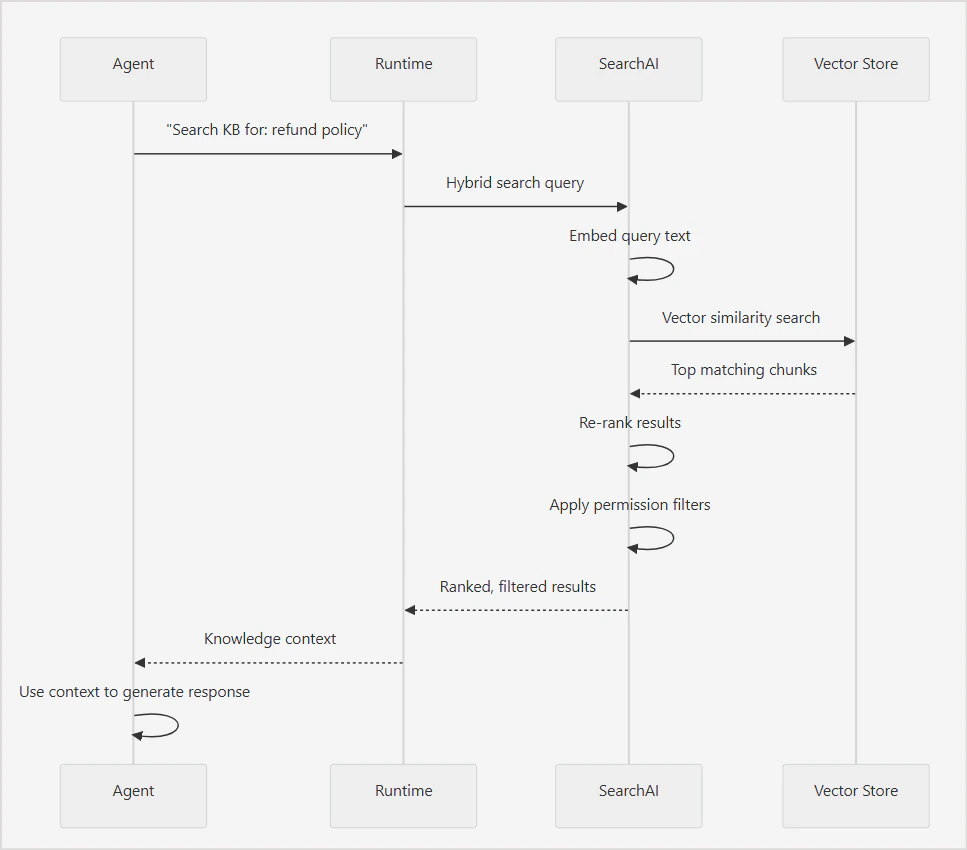
Key Concepts
- Hybrid Search: The platform uses hybrid search by default, combining two complementary strategies to maximize retrieval quality. Semantic Search Semantic search finds chunks whose vector embeddings are most similar to the query embedding. This helps retrieve conceptually relevant content even when the user’s phrasing does not directly match the source text. Example: A query for “How do I get my money back?” can match a chunk about “Refund policy and procedures” even though none of the query words appear in the chunk heading. Use semantic search when users are likely to phrase queries in natural language that differs from the terminology used in the source content. Keyword Search Keyword search finds chunks containing the exact terms in the query. This helps retrieve content with specific names, product codes, technical terms, or identifiers that semantic search might miss due to low vector similarity. Use keyword search when the content contains precise terms — such as model numbers, error codes, or proper nouns — that must match exactly. Hybrid Search Hybrid search merges and re-ranks results from semantic and keyword search to produce a single ranked list of the most relevant chunks.
- Re-Ranking
- Permission Aware Search
Permission filtering happens after re-ranking. The agent only receives chunks
the requesting user is authorized to access, regardless of their relevance
score. This means result counts may vary between users querying the same
knowledge base with the same query.
Adding Knowledge Base
Knowledge bases are created and managed at the project level and are available to all agents within that project. Every knowledge base in the project is automatically exposed as a tool that any agent can attach to and use. To create a knowledge base:- Navigate to Knowledge Bases in the left sidebar.
- Click + New Knowledge Base.
- Enter a name and description.
- Name: used to identify the knowledge base across the project.
- Description: helps agents identify when to use this knowledge base as a tool. Write this clearly and specifically.
- Click Create.
Adding Data Sources
A knowledge base can ingest content from multiple source types simultaneously. Each source is managed independently, and you can add, sync, and remove sources without affecting others. When a data source is added to the knowledge base, the platform immediately begins processing it in the background. No manual steps are required to trigger ingestion or indexing. To add data sources,- Go to the Data tab and + Add Data Source under the Sources tab.
- Select the source connector and Connect.
- Provide configuration details for the source.
File Uploads
Upload files directly from your local system. Uploaded files are ingested immediately and processed through the intelligence pipeline. If the source file changes, you need to re-upload it.- Supported file types: PDF, DOCX, TXT, CSV, MD, XLSX, JSON, HTML.
- Max file size: 100 MB per file
If the source file changes, you need to re-upload it.
View Ingested Content
To view the ingested content,- Go to the Documents page under the Data tab.
- The ingested documents are listed. Click on any document to view the extracted content and the related metadata.
View Extracted chunks
- Click on a document to see the chunks extracted from the document.
- See token distribution across chunks from the document.
Apply Intelligence Rules
Configure Content Pipeline
By default, the platform creates a default pipeline for processing of the ingested content automatically to make it searchable.Default Pipeline
The default pipeline consists of the following stages. You can reconfigure any stage as required. Alternatively, you can add a new flow to the pipeline for custom configurations. Extraction: Extracts raw text and structure from ingested files and connected sources. The extraction strategy varies by file type, for example, tables in spreadsheets are extracted differently from paragraphs in a PDF. Configure extraction settings to control how the platform interprets your content structure. Chunking: Splits extracted content into smaller segments for indexing. Chunk size and overlap affect search quality; smaller chunks return more precise results while larger chunks retain more surrounding context. Configure the chunking strategy based on the nature of your content and how users are likely to query it. Content Intelligence: Enriches chunks with additional metadata, such as topic tags, summaries, or classifications, to improve search relevance. Configure what enrichment is applied to your content at this stage. Visual Analysis: Processes visual content in ingested files, such as images, diagrams, and charts, and extracts text or descriptions for inclusion in the index. Enable this stage when your content contains visual elements that carry meaningful information. Embedding Fields: Defines which fields from the extracted and enriched content are included in the embedding. Controlling embedding fields lets you tune what the vector search considers when matching a query to a chunk. Embedding: Converts the selected fields into vector representations using the configured embedding model. The choice of embedding model affects the quality of semantic search results. Configure the model here based on your language and domain requirements. Opensearch: At this stage, the processed and embedded chunks are written to the index using their embeddings. You can run test queries to see what is currently indexed and verify search quality as content is added.The pipeline runs in sequence. A change to an upstream stage, such as
chunking, affects all downstream stages. Re-indexing is required when pipeline
configuration changes are saved.
Configure Fields
Configure Vocabulary
Vocabulary lets you define aliases for terms that appear in your knowledge base content. When a user queries using an alias, the platform expands the query at runtime to include both the alias and the canonical term — improving search coverage without requiring the user to know the exact terminology used in the source documents. Configure vocabulary when:- Your source documents use formal or technical terminology that users are unlikely to search for exactly
- Your content uses abbreviations or acronyms that users may spell out — or vice versa
- Different teams or user groups use different terms for the same concept
- Search queries consistently miss relevant content despite the content existing in the knowledge base
| Field | Description |
|---|---|
| Term | The canonical term as it appears in the document. This is the authoritative form the platform uses for matching. Example: priority, status, assignee |
| Aliases | Alternative terms a user might search for, entered as comma-separated values. Maximum 10 aliases per term. Example: pri, urgency, importance |
| Description | A brief explanation of what the term represents. Used for internal reference. |
| Field Reference | The schema field this term is associated with. Select from the fields detected during schema extraction. Scopes the vocabulary mapping to a specific field in the index. |
| Capabilities | Define how the term and its aliases are used in the results. |
| Display With | Specify additional fields to show alongside this term in the results. |
Configure LLMs
By default, Knowledge bases automatically select the most suitable LLM configured in the platform for different features. For embedding generation, it uses the BGE-M3 model. Use this section to configure AI-powered features for document processing and enrichment, like embedding models, models used for knowledge graph extraction or vocabulary generation or for advanced features like vision analysis.Search and Test
The Search and Test tab lets you validate the knowledge base configuration by running queries against indexed content before connecting it to an agent. It shows exactly how the knowledge base will respond to a query, including which chunks are returned, how they are ranked, and how each stage of the search pipeline performed. Query Settings Enter a query in the Query field and configure the following settings before running a search: Query Type controls how the search matches the query to indexed content. Three options are available:- Hybrid - combines semantic search and keyword search. Returns results that are both conceptually relevant and lexically matched. Recommended for most use cases.
- Semantic - finds conceptually relevant content based on meaning, even when the exact words do not appear in the source.
- Keyword - finds exact or near-exact matches. Best for structured content where precise term matching is important.
- Search retrieval time - total time taken and the time per search engine
- Results - ranked list of matching chunks showing relevance score, source file, content preview, and metadata fields.
- Resolution Chain Debug, a step-by-step breakdown of how the query was processed
- Data and Indexing - Shows the current state of indexed content, document count, chunk count, and the last indexed timestamp.
- Enrichment - Shows the configuration status of vocabulary and field mappings.
- Pipeline Health - Shows the embedding model in use, the current pipeline status, and whether any index errors have occurred.
Use Knowledge Base as a Tool in Agents
Every knowledge base in the project automatically has a corresponding knowledge tool. Agents access the knowledge base content by attaching this tool. Once attached, the agent can invoke it at runtime to search the knowledge base and retrieve relevant content. To attach a knowledge tool from the agent configuration:- Navigate to the agent and open the Tools section.
- Click Attach Tool.
- From the list of available tools, locate the knowledge tool for your knowledge base — knowledge tools are listed alongside all other project tools.
- Select the tool to attach it to the agent.
- Navigate to Knowledge Tools at the project level.
- Open the knowledge tool that corresponds to your knowledge base.
- Copy the DSL definition shown on the tool page.
- Open the agent’s DSL editor by clicking DSL at the top of the agent page.
- Paste the copied DSL into the Tools section of the agent definition.
- Compile and save the changes.